How to Generate a Demo/Practice Closing
As a notary, especially a new notary, we may feel unsure about how to conduct a closing. Sometimes it's easier to do a practice run, so Simply Secure Sign has made it easy for you to do just that!
Step 1)
Navigate to your Dashboard.
Step 1)
Navigate to your Dashboard.
Step 2)
Locate the blue question mark in the bottom right corner of your calendar and click Generate Demo Closing.
Step 3)
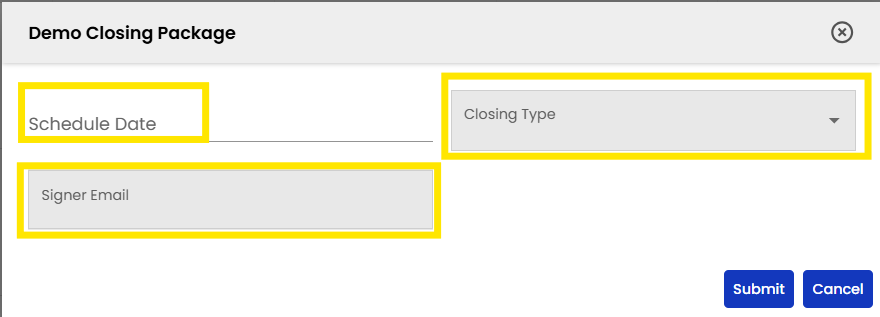
Click the question mark. This will bring up a few areas of information for you to fill out such as the date, time and type of closing you would like to practice along with a space for an email address that your practice signer will utilize when they receive their practice Welcome Email.
Step 4)
Step 4)
Choose the date and time by clicking on the Month to choose the date, and click the time to alter the time of the practice closing.
Step 5)
Click on Closing Type to choose the type of closing you want to practice.
Step 6)
Fill in the signer email for your sample signer. You will not actually receive a Welcome Email, as this is going to be run from your calendar and for you alone.
Once everything has been filled out, click Submit.
Step 7)
Click Ok!
Step 8)
The package will be saved on the date and time that you chose above.
Step 9)
If you open up the blue bar for your scheduled demo, you will see sample information containing "DEMO," and "John Doe" as your signer so that you know this is a true demo/practice package.
You are able to view sample documents similar to that of what your signer will be seeing. This will help you become more familiar with all aspects of the closing ahead of a real closing package.
Step 10)
On the day of the closing, you will want to click "eSign" at the bottom of the window above.
From there, the application will walk you through the rest of the sample package as if it were a live package.
This sample package is set up as a RON package. Please see the How To on RON Closings to continue learning more about conducting a RON closing.
Related Articles
IPEN & RON FAQs
IPEN & RON 1. Can I do RON and IPEN signings on Simply Secure Sign? Yes, Simply Secure Sign is an e-closing platform with RON and IPEN capabilities. Please confirm your commissioned state(s) allows RON and/or IPEN signings. 2. What states allow me to ...Conducting an IPEN Closing
How to Conduct an IPEN Closing (updated 2025) IPEN Closings are In-Person Electronic Notarizations. This means that you, as the notary, will physically be in the same vicinity at an agreed-upon location with your signer(s). As a notary, you will have ...Performing a Closing & FAQs
Performing a Closing 1. When a RON or IPEN signing is complete, who receives the documents digitally and when? Once a signing is complete, all “Complete” notifications are delivered. These notifications are sent to the signer, lender, and title ...Package Creation, Viewing & Tagging
Package Creation, Viewing & Tagging 1. Who creates the closing documents and can they be edited before, during, or after the closing by the notary or the signer? The closing package is created by the lender and title office, and all document input ...How to Access & View Dashboard
As a notary, your dashboard is your one-stop shop for checking in on available closings assigned to you. Typically, this will be the first screen you are brought to once you log in. If you are not brought to this automatically, you may access your ...